Asset Minding is operated by Warnick Software LLC. This Privacy Policy explains how Asset Minding collects, uses, stores, and shares information when you visit assetminding.com, create an account, use the Asset Minding application, contact us, or use our billing features.
1. Information We Collect
We collect account information such as name, email address, company name, login credentials, user role, account status, and user preferences.
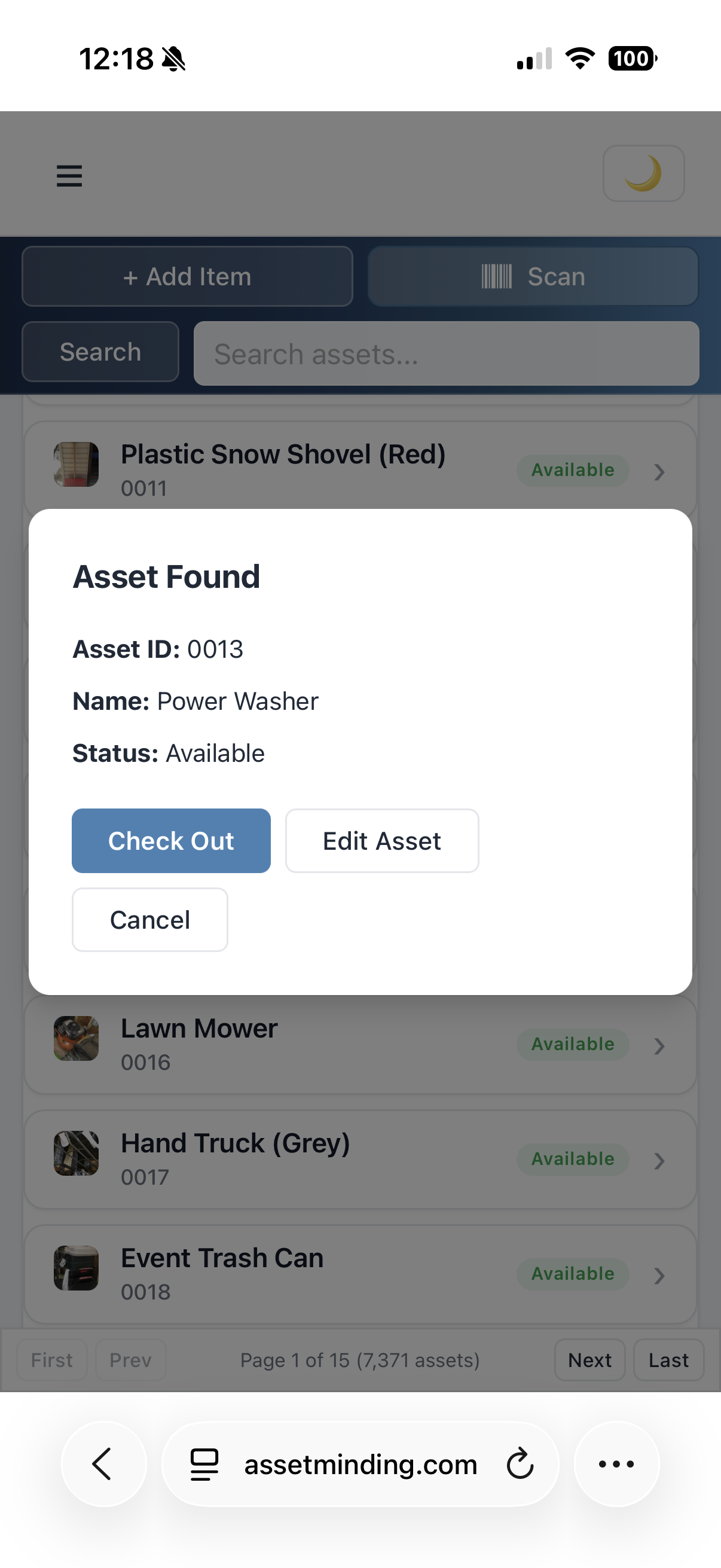
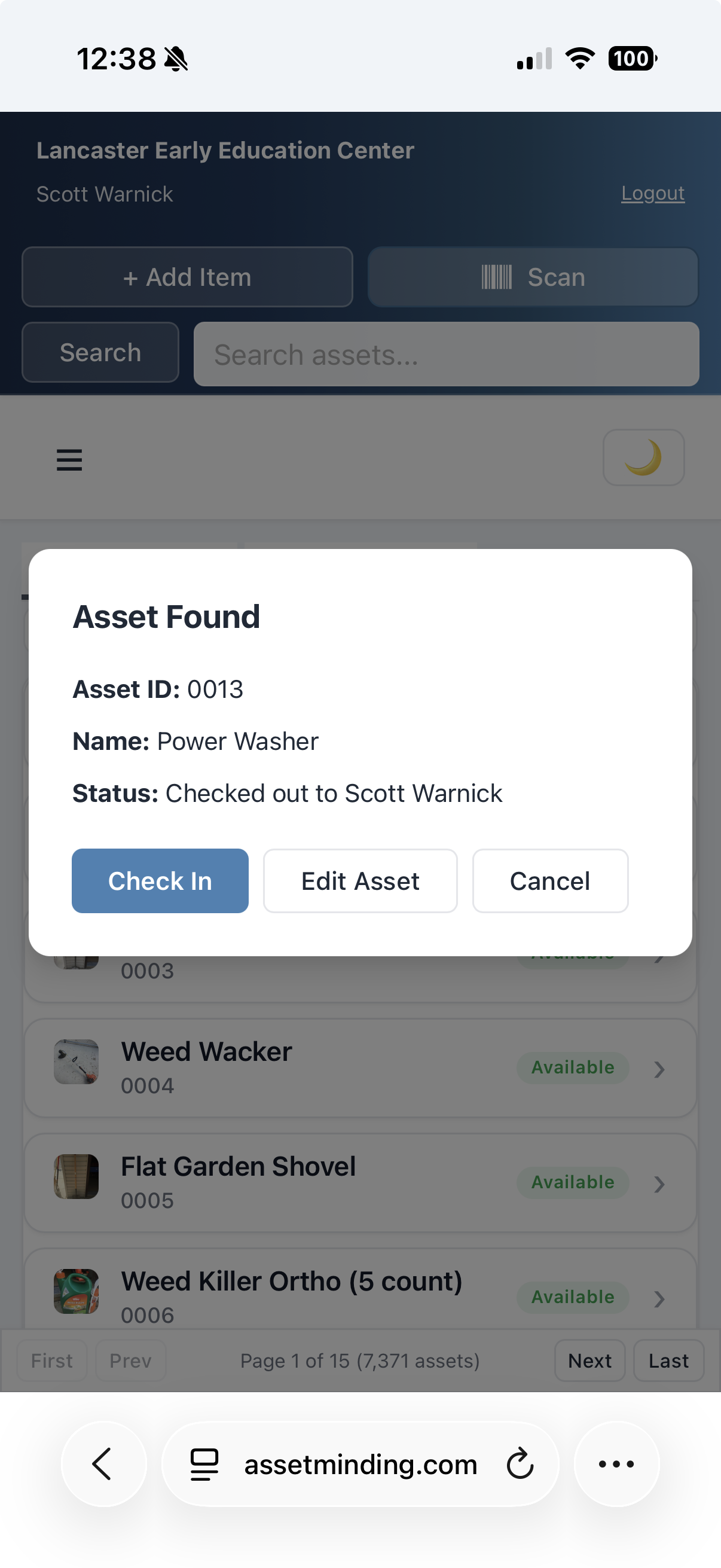
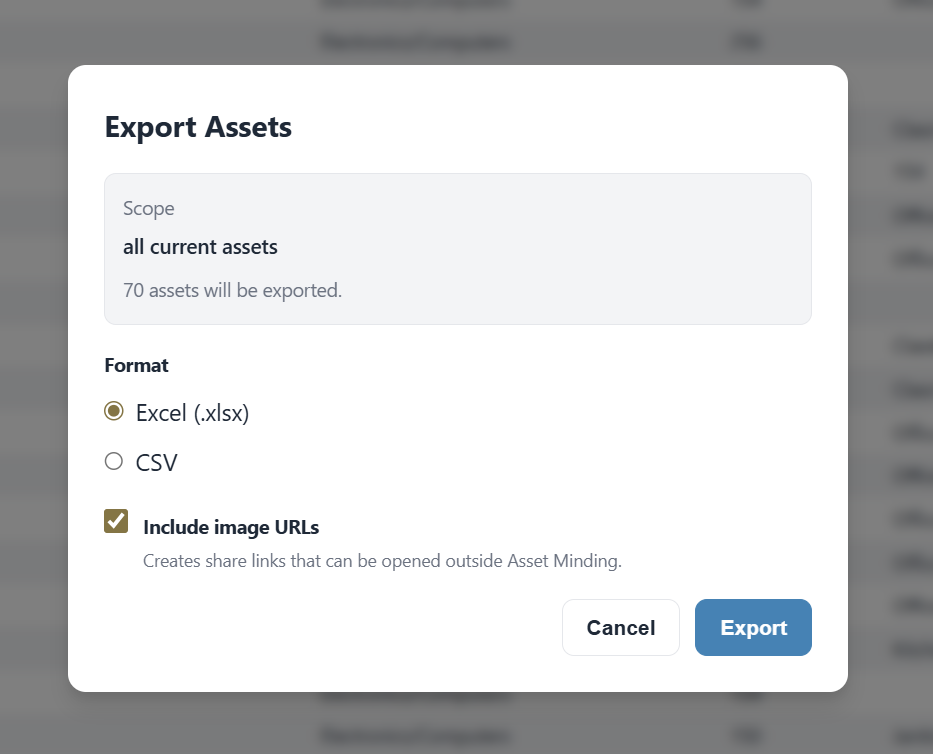
We collect organization and asset data such as asset records, asset IDs, categories, departments, sites, locations, statuses, checkout/checkin history, custom columns, reports, imports, company logo, and uploaded asset images.
We collect billing information such as subscription plan, Stripe customer ID, invoice records, payment status, hosted invoice links, and billing portal activity. Payment card details are processed by Stripe and are not stored directly by Asset Minding.
We collect contact form information such as name, email address, company name, and message content submitted through the public contact form.
We collect security and usage information such as IP address, browser/device information, authentication events, audit log entries, error logs, rate-limit events, reCAPTCHA results, and related technical data needed to operate and secure the service.
Asset Minding uses cookies to maintain authenticated sessions and protect account access. Authentication tokens are stored in secure, HttpOnly cookies so they are not readable by JavaScript. Asset Minding also uses a separate CSRF cookie and request header to help protect authenticated actions from cross-site request forgery.
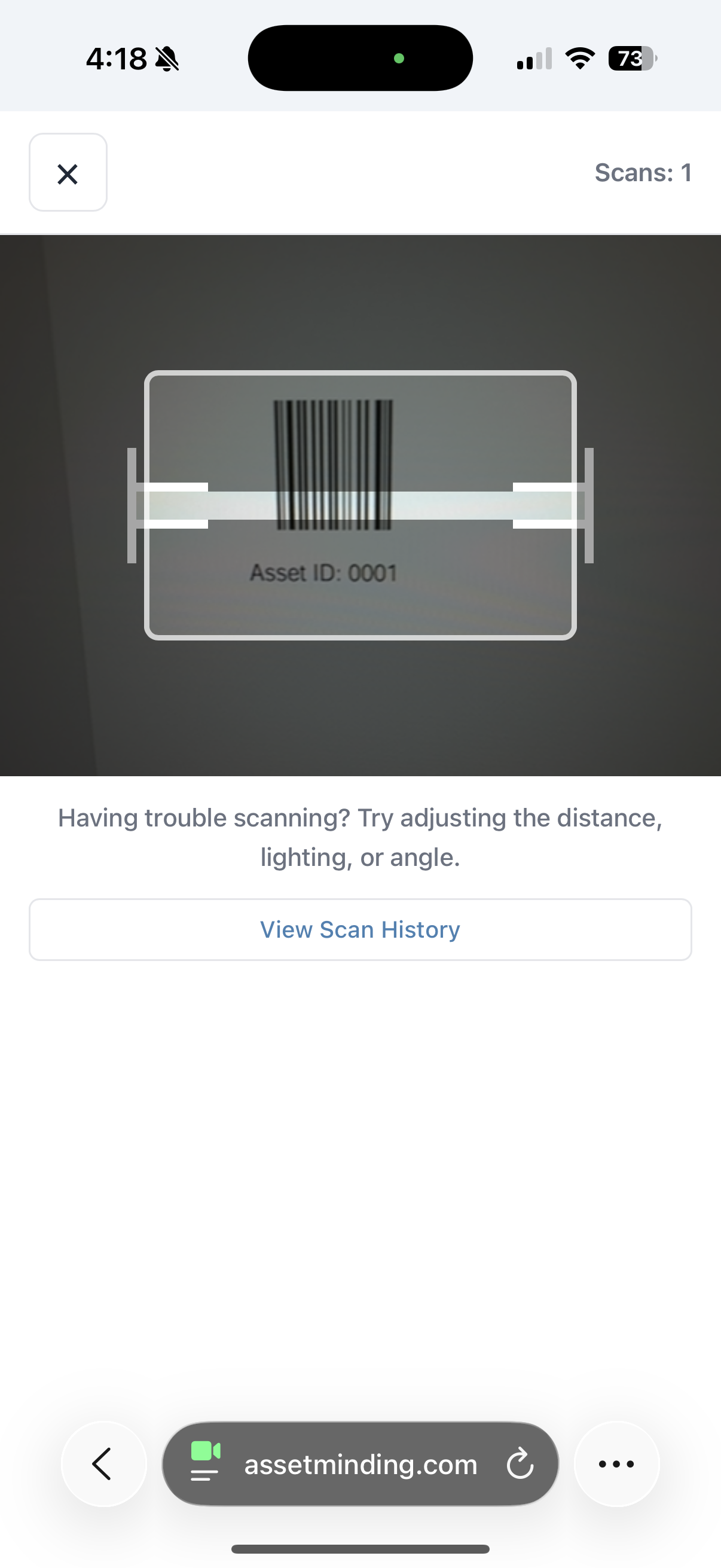
Asset Minding uses browser storage such as sessionStorage and localStorage for non-token application data, including user interface state, display preferences, dark mode, scanner history, cached column/report settings, and similar convenience features. Authentication tokens are stored in HttpOnly cookies rather than sessionStorage or localStorage.
2. How We Use Information
We use collected information to provide, operate, and maintain Asset Minding; authenticate users and protect accounts; manage assets, reports, imports, images, checkout/checkin workflows, and audit logs; process subscriptions, invoices, receipts, payment failures, upgrades, downgrades, and cancellations; send transactional emails; respond to contact form submissions and support requests; detect and prevent fraud, abuse, unauthorized access, spam, and security incidents; enforce subscription limits and application rules; and improve reliability, performance, and user experience.
3. How We Share Information
We do not sell personal information. We may share information with service providers that help us operate Asset Minding, including Amazon Web Services for hosting, authentication, database storage, image storage, logging, email delivery, and security infrastructure; Stripe for subscription billing, payment processing, hosted invoices, and billing portal access; Google reCAPTCHA for spam and abuse prevention; and email delivery services used for transactional messages.
We may also disclose information when required by law, to protect the security or integrity of Asset Minding, to enforce our agreements, or in connection with a business transfer such as a merger, acquisition, or sale of assets.
4. Customer Data
Asset Minding is a business software platform. Organizations and their authorized users control the asset records, images, imports, reports, and user data they enter into the service.
Do not upload sensitive personal information unless it is necessary for your organization's use of Asset Minding. Asset Minding is not designed to store medical records, Social Security numbers, protected health information, student education records, or personal information from individuals under 18.
5. Privacy For Individuals Under 18
Asset Minding is not directed to individuals under 18 and is intended for use by organizations and their authorized personnel. We do not knowingly collect personal information directly from individuals under 18. If you believe an individual under 18 has provided personal information to Asset Minding, contact us so we can review and delete it where appropriate.
6. Security
Asset Minding uses security measures intended to protect information, including HttpOnly authentication cookies, authenticated access, role-based permissions, tenant isolation, CSRF protection, input validation, encrypted HTTPS connections, AWS Cognito security protections, AWS WAF rules, rate limiting, and restricted access to stored data.
No online service can guarantee absolute security. Users are responsible for maintaining the confidentiality of their login credentials and for granting access only to authorized personnel.
7. Data Retention and Deletion
We retain information for as long as needed to provide the service, comply with legal obligations, resolve disputes, enforce agreements, maintain security, and preserve business records.
Asset Minding includes an organization data erasure workflow that allows an administrator to request deletion of organization data, including asset records, user records, audit logs, report caches, images, logos, staging data, and related account data. Some billing, transactional, security, backup, or legal records may be retained where required or permitted by law.
8. Your Choices and Rights
Depending on your location, you may have rights to request access to, correction of, deletion of, or information about personal information we maintain about you.
You may update account and organization information inside the application, request deletion through the in-app data removal tools where available, contact us to request help accessing, correcting, or deleting information, and manage billing through the Stripe billing portal when available.
We do not currently respond to browser "Do Not Track" signals.
9. Cookies, Analytics, and Tracking
Asset Minding uses local browser storage and security tools needed for authentication, fraud prevention, user preferences, and application functionality. We use Google reCAPTCHA to help prevent automated abuse. We do not use Asset Minding to sell personal information or share personal information for cross-context behavioral advertising.
10. International Access
Asset Minding is operated from the United States and is currently configured primarily for U.S. access. If you access the service from outside the United States, your information may be processed in the United States.
11. Changes to This Policy
We may update this Privacy Policy from time to time. When we make changes, we will update the effective date above. Material changes may also be communicated through the application or by email.
12. Contact Us
For privacy questions or requests, contact Asset Minding, Warnick Software LLC, at contact@assetminding.com.